> For the complete documentation index, see [llms.txt](https://docs.documentero.com/documentation/llms.txt). Markdown versions of documentation pages are available by appending `.md` to page URLs; this page is available as [Markdown](https://docs.documentero.com/documentation/templates-excel/fields-images.md).
# Fields - Images
You can inject logos, photos or images into your spreadsheets cells dynamically. It's possible using special field type (available in API mode using Base64 or Image URL).
#### Syntax
You need to add an "%" in front of your field name The final syntax should be: **{%fieldName}**
```
{photo} - Regular Field that supports only regular text / number
{%photo} - Special field that creates images in output document
{#%people.photo} - Special field in table/section "people" that creates Images
```
### Adding a dynamic image to document template
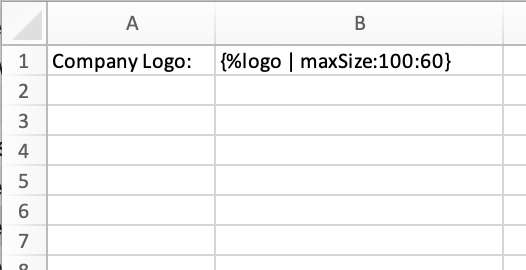
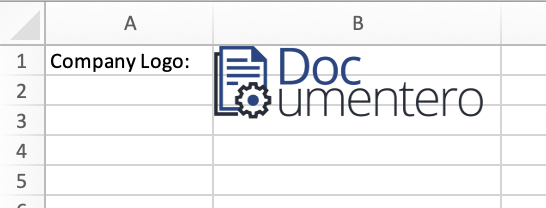
You can add dynamic images to your templates using the "%" prefix. Examples: {%logo}, {%photo}, {%product}. Image will be placed with starting point of top-left corner for placeholder cell and can overlap cells on the right/below image placeholder cell.
Template
Output
### Dynamic Image Size
By default image size will be the same as the size of the image that is being sent, however, in most cases, we would like set width/height manually or limit the maximum width or maximum height to keep the aspect ratio of the image (recommended). You can do that by using **"size"** and **"maxSize"** formatters and providing desired width and height.
Most of the time you need to set maxSize (otherwise your image could be cut)
Examples:
```
{%image1}
{%image2 | size:250:100}
{%image3 | maxSize:300:500}
```
### How to pass the image data using API
Once you upload your document template that consists image tag ( e.g. {%logo} ) it should be detected on the template overview page
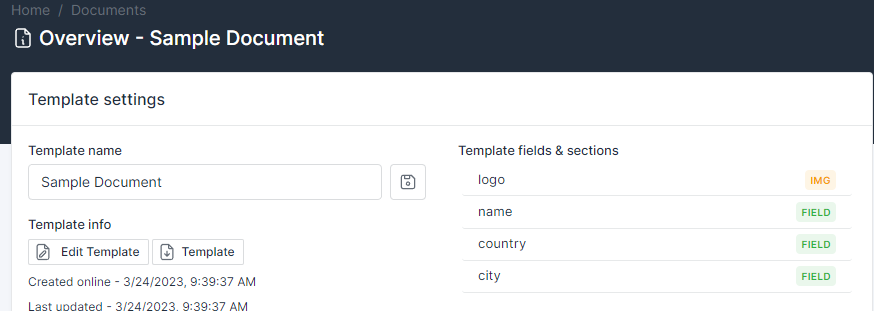
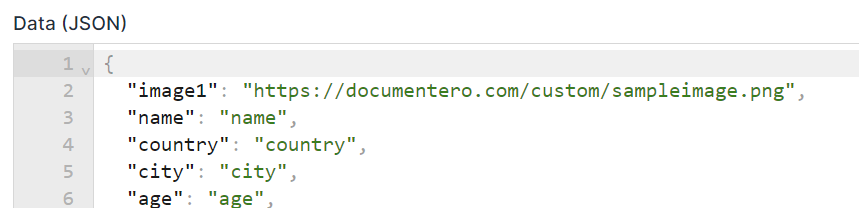
You can send images over API in two ways:
* **as image url (provide full url to image)**
* **as text using base64 format**
Supported file types: **jpg, png, svg.**
Sample Small Image example will be added to your API section: