# Welcome to Documentero Docs
Ready to transform your document generation process? Dive into the detailed documentation for each feature and make the most out of Documentero's capabilities.
### Templates
Create professional and customized documents with Documentero's powerful template system. Learn how to design and configure templates for document generation.
| Features | Word/PDF \| .docx templates | Excel \| .xlsx templates |
| ------------------- | ------------------------------------------------------------------------------------------------------------------------------------------------------------------------------------------------------------------------------------------------------------------------------------------------------------------------------------------------------------------------------------------------------------------------------------------------------------------ | ---------------------------------------------------------------------------------------------------------------------------------------------- |
| Fields | [Replace any part of text in the document using placeholders.](/documentation/templates/fields) | [Replace cell values using placeholders respecting data type. ](/documentation/templates-excel/fields) |
| Sections/Tables | [Sections control parts of document like paragraph / table row / list item](/documentation/templates/sections) | [Insert multiple line-items into spreadsheet tables with multiple columns.](/documentation/templates-excel/sections-tables) |
| Images | [Insert images into your documents.](/documentation/templates/fields-images) | [Insert images into spreadsheet cells.](/documentation/templates-excel/fields-images) |
| HTML | [Pass HTML to get the formatted text in output document.](/documentation/templates/fields-html-support) | [Pass HTML to get the rich text in output spreadsheet cells.](/documentation/templates-excel/fields-html-support) |
| Markdown | [Pass Markdown to get the formatted text in output document.](/documentation/templates/fields-markdown-support) | [Pass Markdown to get the formatted rich text cell.](/documentation/templates-excel/fields-markdown-support) |
| QRCodes | [Inject QR codes into your documents as images.](/documentation/templates/fields-qrcodes) | [Inject QR codes into your spreadsheet cells.](/documentation/templates-excel/fields-qrcodes) |
| Additional features |
|
### General
Navigate through essential information about Documentero, including application changelog, account settings and basics of templates management.
[Templates Introduction & Tutorial](/documentation/general/templates-introduction-and-tutorial)
### Forms
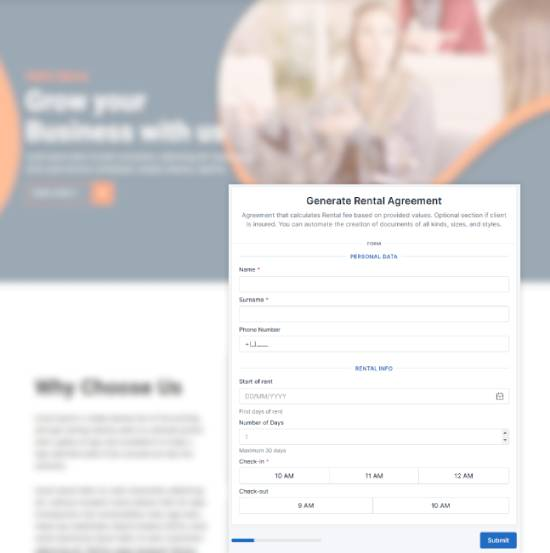
Discover the simplicity of creating documents using forms tailored to your document templates. Learn how to share our online forms to collect information seamlessly and generate ready-to-use documents send directly to configured email.
[Create Documents using Form](/documentation/forms/create-documents-using-form)
### API
Integrate Documentero into your workflow with our Cloud Rest API service. Leverage the power of automation by dynamically generating documents through our API.
[Create Documents using API & JSON](/documentation/api/create-documents-using-api-and-json)
### Spreadsheet
Efficiently generate documents in bulk using spreadsheet/csv data. Automate the document creation process at scale directly from our app.
[Create Documents using Spreadsheet](/documentation/spreadsheet/create-documents-using-spreadsheet)
### AI
You can create templates, convert existing documents into templates and prepare data for your documents with help of AI.
[AI Usage & Configuration](/documentation/ai/ai-usage-and-configuration)
### Integrations
Connect Documentero with popular systems like Zapier, Make.com, Power Automate, N8N, Webflow, Flutterflow, Bubble.io, and more. Unlock endless possibilities with tutorials and plugins that enable smooth collaboration between Documentero and your favorite platforms.
Happy Documenting!
# Usage Limits and Quotas
You can find usage indicators on the dashboard page, showing your current position within the limit. The limit depends on your selected free or paid membership plan. **Once the limit is exceeded, the Documentero service will be temporarily unavailable (hard stop)**. To continue using the service, you should consider upgrading to a higher plan.

### Documents Generations Limit
It counts all document creations per user and user’s shared forms:
* Documents generated from Documentero App
* All documents generated from share form’s shared by user
* Documents generated using API
> Please be careful when you send your shared form public link. If you share it to everyone you can expect that you will reach your Documents Generation limit quicker than expected.
To help you avoid unexpected interruptions, Documentero sends automatic email notifications to the account owner as usage approaches the limit:
* At 80% of the available quota, you receive an early warning.
* At 90% of the available quota, you receive an action warning.
* At 100% of the available quota, you receive a final notification that document generation has been stopped for the current cycle.
Once the quota is fully used, new document generations are blocked until the quota resets for the next cycle or your plan is upgraded.
### **Templates Limit**
It counts all document templates associated with your account (including documents in all folders).
If you hit the limit you need to remove unused documents or upgrade to higher plan.
**Maximum size of uploaded document templates (.docx) is 10MB.**
**Maximum size of online templates is 1MB**
### **Data / API Limits**
**The maximum size of data passed as content for the generated document is 10MB (JSON format).**
If you hit the limit most likely you are using base64 images extensively. Consider passing them as public URLs (or in a smaller format)
**Rate limiting**
The API enforces a rate limit of **200 (document generation) requests per minute per API key** to maintain performance and fair usage. If this limit is exceeded, the server responds with an **HTTP 429 (Too Many Requests)** status code and a JSON error message indicating that the rate limit has been reached.
**Secure API Usage and Key Protection**
The API is designed strictly for **server-to-server use** and must **not** be accessed directly from client-side environments such as websites, browsers, or mobile applications. Your **API key is a confidential credential** and should never be exposed publicly in code, network requests, or repositories. Any API keys found to be publicly accessible or misused may be **suspended or permanently blocked** to ensure security and prevent unauthorized use.
# Manage Account & Plans
If you want to edit your account settings click on your user avatar in header bar and select account link.

You can control following items:
* Your name/company name (visible when you login)
* Grab or revoke api Key
* Manage your subscription plans
### Controling API key
You can grab or change apiKey by clicking on "Regenerate API Key" link:

> Keep in mind that if you regenerate your apiKey you need to modify all services
> It's not recommended to use your apiKey in client side application. You should control how Cloud Service is called otherwise you can go easily out of your plan
### How to delete your Documentero account
1. Sign in and go to Account (Account Settings).
2. Cancel any paid subscription and wait until your plan is Free.\
Account deletion is blocked while you still have an active, paused, past-due, or expiring paid plan (including lifetime / AppSumo plans).
3. Next to your email, open Delete Account.
4. Read the confirmation carefully, then type your account email to confirm.
5. Confirm deletion.
What happens next
* Your account is deleted immediately: you are logged out and can no longer use Documentero or the API.
* You should receive a confirmation email.
* Personal data, activity, and templates are permanently removed within up to 30 days.
### Multi-factor authentication
Multi-factor authentication is optional. After you turn it on, signing in requires your password and a 6-digit code from an authenticator app.
Your email address must be verified before you can turn it on.
#### Turn it on
1. Sign in and open Account.
2. Under your name and email, open Multi-factor authentication.
3. Click Set up authenticator app.
4. Enter your current password and continue.
5. Scan the QR code with an authenticator app, or enter the key manually.
6. Enter the 6-digit code from the app and click Turn on.
The next sign-in will ask for a code. If a code was just used for setup, wait for the next code in the app before signing in.
Changing your email also asks for a current authenticator code.
#### Turn it off
1. Open Account, then Multi-factor authentication.
2. Click Turn off.
3. Enter your current password.
4. Enter the current 6-digit code from the authenticator app.
Resetting your password does not turn this off. If you lose access to the authenticator app, contact .
# Documentero Roadmap / Changelog
### Changelog
#### October 2026
* MFA Authorization available for all accounts in settings
#### July 2026
* MCP Server (beta) - Use agents to generate documents from templates
* HTML field (Word/PDF) - Improved table/column sizing for available document space
#### June 2026
* AI Feature - Content Generation for Template Fields
* AI Feature - AI-Assisted Template Editing
* AI Feature - Document-to-Template Conversion
* AI Feature - Form Configuration Assistance
* XLSX (Excel) - Fields Detection Improvements
#### May 2026
* Template Previews on Template Overview Page
* Generated Document Previews
#### April 2026
* Dashboard – Added account usage statistics
* Template Overview – Added per-template usage statistics
* Activity Logs – Introduced filtering by activity type
* Notifications – Added quota usage alerts at 80%, 90%, and 100% thresholds
#### March 2026
* Date formatter - "inputFormat" parameter added
#### February 2026
* HTML field (Word/PDF) - Various small improvements, HTML Entities decoding
* XLSX (Excel) - Dynamic sheet names, conditional sheets
* XLSX (Excel) - Dynamic column tables (Dropping empty columns in named tables)
#### December 2025
* HTML field - Improvements
* Added support for hr, ins and blockquote element
* Improved pre element newlines handling
#### November 2025
* Power Automate Integration
* App & API Performance Improvements
#### October 2025
* n8n Integration - Official verified community node
* AI Module - Added ability to generate content for HTML/Markdown fields
* AI Module - Improvements & GPT-5 model support
* Integrations Gallery
#### September 2025
* HTML field - Various improvements:
* Images - Support for 'max-width', 'max-height'. Adjusting to available template space
* Added support for elements: col, colgroup
* Added support for styling properties: 'text-decoration', 'margin-top', 'margin-bottom' and 'max-width', 'max-height' for img elements
* Support for links with images
* Support for auto-calculated and defined columns widths
* Support for nested tables
* Field formatter added - Trim - Remove whitespace before/after text
#### August 2025
* Template Gallery - 1000+ Examples of .docx / .xlsx templates available from the app/editor
* "Inter" font support for PDF exports
#### June 2025
* Excel (XLSX) templates support - Generate real excel files based on provided data
* New options to API (alternative authorization via header; new fields emailCC, emailBCC)
#### May 2025
* PDF Performance - Improved & Faster .PDF files generation
* QRCode field - generate dynamic scannable QRCodes based on passed data
#### April 2025
* Markdown input format support
* Mermaid Charts/Diagrams Support in HTML/Markdown
#### February 2025
* HTML field - extended elements support: del, pre, code, del, ins, s, ins, em
* Image field - added webp. image format support
* Bugfixes and small improvements
#### September 2024
* Embeedable Form Styling Customization
* Frequently Asked Questions added to documentation
#### **July 2024**
* Improvements to Smart Sections and template variables (Handling 0 and empty values)
#### June 2024
* Albato Integration
#### May 2024
* HTML Parsing Improvements
* Support for links (a elements) in html
* HTML & Images - Improved quality of images passed to documents
#### March 2024
* Option to provide emailSender, emailFooter when using API & Email feature.
* Option to pass HTML for emailMessage when using API & Email feature.
* Nested \
, \ lists support in HTML field
#### February 2024
* New, Searchable Improved Documentation
#### January 2024
* Bulk Document generation from Spreadsheets
#### December 2023
* Multiple recipents support on document generation over API
* Dedicated WebFlow Plugin
#### November 2023
* [Make.com](http://make.com/) (Integromat) Official integration
* Markdown Formatting Support for Info/Text Before/After Fields
#### October 2023
* Dedicated [Bubble.io](http://bubble.io/) Plugin
* Export / Import Form Data
* Export pre-filled customer data & send to email in shared forms
#### September 2023
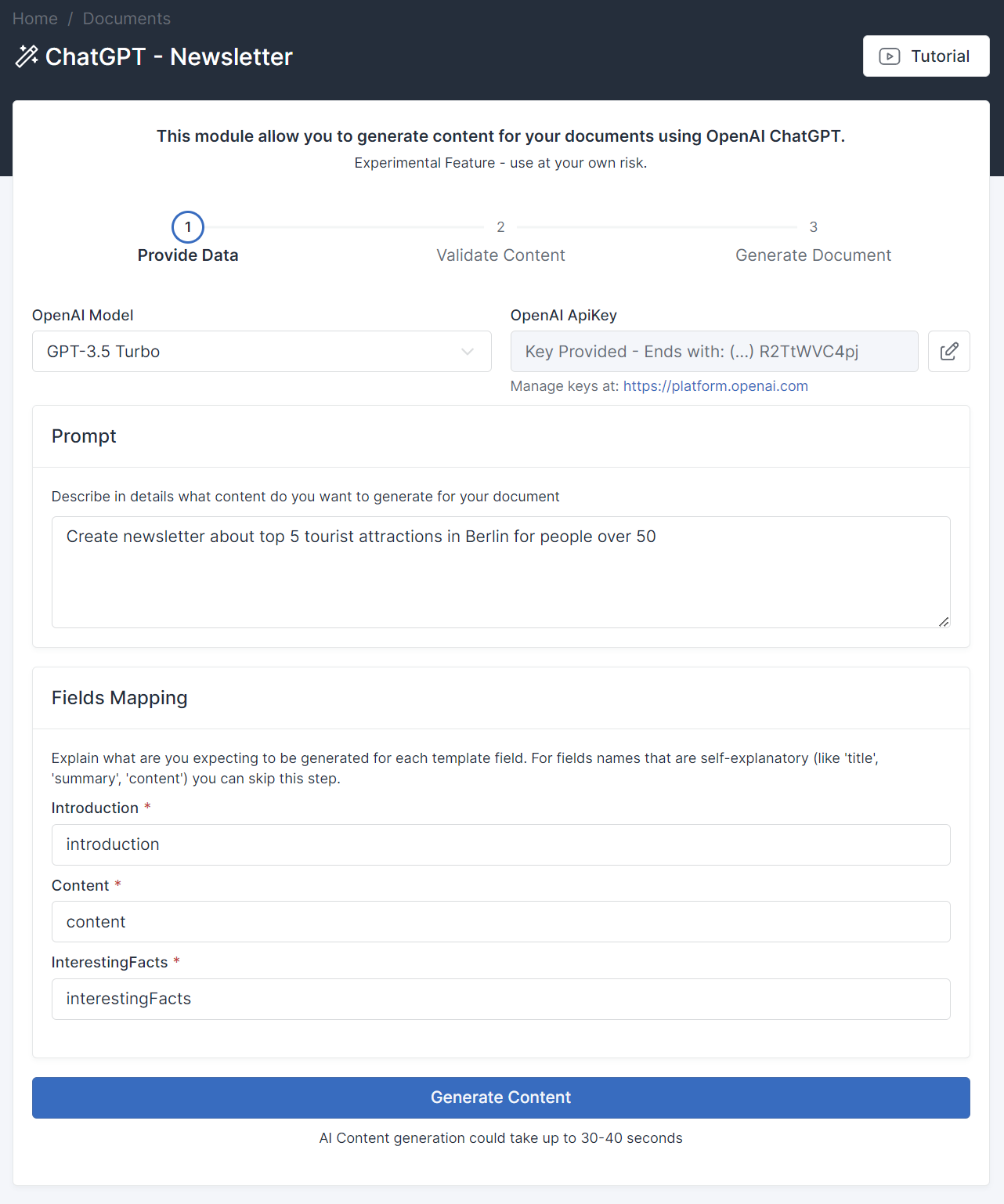
* Generate documents using ChatGPT
* Link Field Type
* Template Overview - UX Improvements
#### August 2023
* Embed Shared Form as a Widget on your Website
* [Make.com](http://make.com/) Integration - Official Integration
#### July 2023
* HTML Field Support - Pass html as field text - it will be formatted in Word/PDF document.
#### June 2023
* Official Integrately Integration
* [Make.com](http://make.com/) Integration - Pending Approval
* Contains / Notcontains - New Conditions for Smart Sections
* Custom text paragraphs between form fields
#### May 2023
* Ability to send documents to multiple emails
* Conditional Form Fields - Show Fields based on conditions/formulas and other field values.
* Time / Date Formatters - Format Date or Time Based on Country / Timezone
* Pabbly Connect Integration - Done
#### April 2023
* Multi-Language support for App Interface and Shareable Forms
* Image maxSize and size Filters (resize an image to target dimensions in the document)
* Send a document as an email attachment using API
* Integrations Page (workflow management directly from Documentero)
#### March 2023
* Images Support for Forms
* Images Support using API Requests (base64)
* Images Support in Templates (new special tag)
* Zapier Integration
#### February 2023
* Create Documents using a WYSIWYG online editor
* Template Overview Page
#### December 2022
* Export to PDF Feature
* In-App Help & Youtube Tutorials
#### February 2022
* Customizable document generation forms
* Public shareable forms
# Privacy Policy
At Documentero, we prioritize the protection of your privacy. Our service is intentionally designed to refrain from storing documents customer data or generated documents. For further details, we encourage you to review our comprehensive Privacy Policy.
You can find latest privacy policy under link:
# Frequently Asked Questions
**Q: Are there any limits on fields or page numbers for documents?**\
A: There are no limits on the number of pages, fields, or placeholders. However, there are some technical limits - a 10MB data limit for document generation and a 10MB limit for uploaded document templates.
**Q: Does Documentero support documents in languages \[X/Y/Z]? Does it support right-to-left (RTL) text?**\
A: Yes, Documentero adheres to the text styling defined in your uploaded template (.docx format). If the template is set to RTL, the generated document will respect that formatting.\
Note: The app interface and shareable form UI are available in English, Spanish, German, French, Italian, and Polish.
**Q: Can I use PDF or Fillable PDF as document template ?**\
A: No, Documentero document generation service is based on .docx and online templates (created using our editor). If you want to use PDF as template you need to convert it to .docx format first. In terms of document output format we support both .docx and .pdf
**Q: How do I add a header or footer to the document template?**\
A: Upload your template in .docx format. Headers and footers can be configured directly in Word or Google Docs.
**Q: How can I create a document in landscape mode or a custom page size/format?**\
A: To access full formatting capabilities, upload a template in .docx format where you can set the page orientation and size. These settings will be preserved during document generation.
**Q: Some formatting elements are not available in the online template editor. What can I do?**\
A: To access all formatting capabilities, use uploaded templates in .docx format.
**Q: What fonts are supported in PDF output mode?**\
A: Not all fonts are supported in PDF exports. If there is no available font for PDF conversion - similar/default font will be used. This could depend on the used font or language. We support variations of:
Open Sans, Roboto, Lato, Noto, Dejavu, Inter, Liberation, Freefont and Overpass
**Q: Why does Markdown/HTML formatted text look different from the placeholder font?**\
A**:** Formatted Markdown or HTML content uses the default *Normal* text style from your document template, rather than the placeholder’s inline style. To change this, update the default text styling: go to *Normal Text Style > Modify > Set the desired font > Save the template*, and then re-upload it.
**Q: Elements in the header or footer are missing in my PDF output. Why?**\
A: Some elements may appear differently in the PDF output. If there are overlapping free textboxes or shapes in the header or footer, they may not be visible due to insufficient space. Try moving the text out of the shapes or resizing the header/footer/shapes to resolve the issue.
**Q: How can I conditionally show parts of a document?**\
A: Use Sections & Smart Sections to display specific text, paragraphs, or even entire pages based on conditions and the values of other fields.
[Sections](/documentation/templates/sections) [Smart Sections](/documentation/templates/smart-sections)
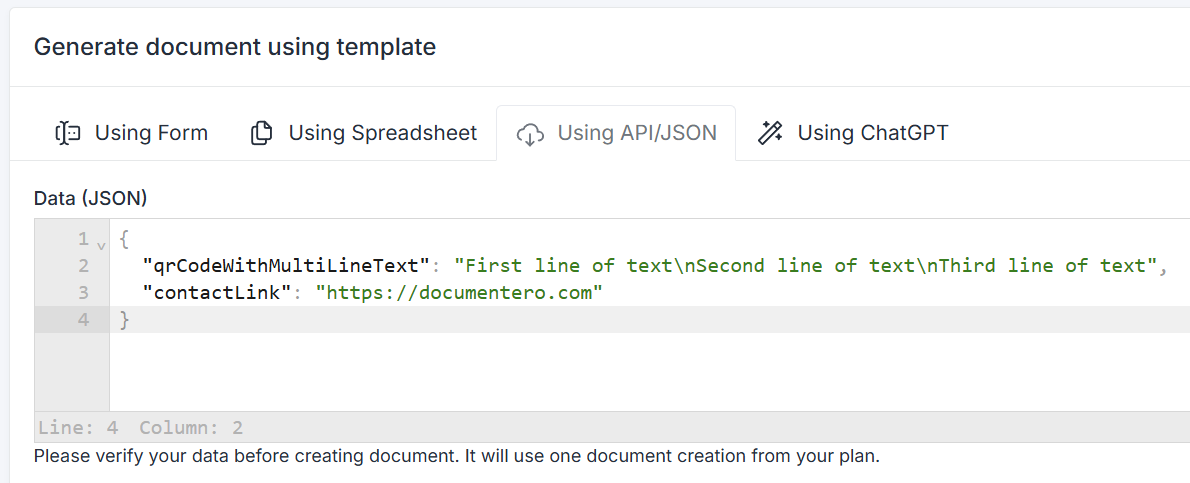
**Q: How can I pass multiline text when using the API to generate documents?**\
A: Use the special character "\n" to insert line breaks in your documents.
**Q: How can I customize the output document filename to include specific data?**\
A: Navigate to your templates, go to the Template Overview (by clicking the template name) and edit the Output Filename field. You can make the filename dynamic by including document fields and date stamps, such as 'Client Report {surname} {datestamp}'.
**Q: How can I insert an image (JPG/PNG) into a document?**\
A: Use the image field (e.g., "{%logo}"). For more information, refer to the documentation: [Fields - Images](/documentation/templates/fields-images)
**Q: How do I populate paragraphs or table rows with a dynamic number of elements?**\
A: Use sections for this purpose. Sections can be applied to both block elements and table rows. Learn more here: [Sections](/documentation/templates/sections)
**Q: Can I review the generated documents? Where are they stored?**\
A: Documentero does not store generated documents, in compliance with our data privacy design. You can configure the system to send documents to specific email addresses or integrate with services like Google Drive using automation workflows (Zapier, Make, etc.).
**Q: How long is the download link valid for generated documents?**\
A: The download link (with special non-guessable security token) is valid for 10 minutes, then document cannot be downloaded.
**Q: How can I add signatures to documents?**\
A: Documentero does not have built-in e-signature functionality. However, you can integrate it with a dedicated e-signature service via automation tools (Zapier, Make, etc.). For legal e-signatures, pair Documentero with e-signature software that complies with regulations in your country. You can also configure shareable forms to prompt clients for signatures and redirect them to an third-party e-signature service with generated file.
**Q: I added an image field but the image isn't visible. Why?**\
A: This issue typically arises when the image URL is not publicly accessible. Documentero cannot retrieve images that require login access.
**Q: I have multiple conditional smart sections stacked one after another. How can I remove the empty spaces in output document?**\
A: You can place new smart sections immediately after the end of the previous one on the same line. Newlines can be included within each section as needed.
Example (This will result in empty spaces if the conditions are not met):
```
{#$ field1 == ’yes’}field1{/}
{#$ field2 == ’yes’}field2{/}
{#$ field3 == ’yes’}field3{/}
```
Example with newlines inside conditional sections:
```
{#$ field1 == ’yes’}
field1{/}{#$ field2 == ’yes’}
field2{/}{#$ field3 == ’yes’}
field3{/}
```
**Q: Can I add technical, invisible fields and use them as conditions?**\
A: Yes, you can add invisible fields by using the "| hide" modifier in the placeholder definition, and then use them in Smart Fields and Smart Sections:
Example:
```
{fieldname | hide}
{#$ fieldname == 'Yes'}☒{/}
{#$ fieldname == 'No'}☐{/}
```
[Smart Sections](/documentation/templates/smart-sections)[Smart Fields](/documentation/templates/smart-fields)
**Q: How can I display checkboxes or other symbols conditionally in the document?**\
A: Here's an example using a hidden field "yeslearnmore" to display different checkbox symbols based on conditions:
```
Do you want to learn more about me?
{yeslearnmore | hide}
{#$ yeslearnmore == 'Yes'}☒{/} {#$ yeslearnmore != 'Yes'}☐{/} Yes
{#$ yeslearnmore == 'No'}☒{/} {#$ yeslearnmore != 'No'}☐{/} No
```
**Q: How can I display the number of elements passed to a section?**\
**A:** Use the **`length`** property of the Smart Field, for example: **`[nameOfSection].length`**.
```
{#people}{name} - {surname}{/people}
Number of people: {$ people.length}
{#$ people.length > 5}More than 5 people in the list{/}
```
**Q: How can I add elements to the first or last item in my section?**\
**A:** Use the artificial fields **`index`** and **`iterator`** available inside **Smart Sections** and **Smart Fields**. These fields let you detect whether you're at the first or last element, so you can conditionally insert additional content where needed.
```
Show comma after first element from list:
{#list}{$ iterator > 1 ? ', ':''}{name}{/list}
Show text after first element and before last element:
{#list}
{#$ iterator == 1 }This is first element:{/}
{#$ iterator == list.length }This is last element:{/}
{name}
{/list}
```
**Q: Can I use nested sections in the template?**\
A: Yes, you can nest sections within each other. For example, you can define a repeatable section with another repeatable section inside.
**Q: Document generation takes a lot of time, I got timeouts in my Zapier/Bubble workflows**\
A: Some integration tools (like Zapier or Bubble actions) have limited action time (e.g. 30 seconds). If the document generation lasts longer (unlikely) - they could throw a timeout error.
How to troubleshoot/speed up long-running document generation:
* Consider changing the output format from PDF to DOCX (Docx output is always faster) (You can convert the document to PDF in a separate step if needed)
* Optimize your document template to be lightweight (e.g. resize/compress in-template images)
* Check if you are not passing unnecessary data for document generation
* If you are using image fields and passing image URLs, make sure that they are hosted under a public URL and can be downloaded fast w/o interruptions (otherwise they will extend the time required for document generation)
**Q: How do I embed a document generation form on my website?**\
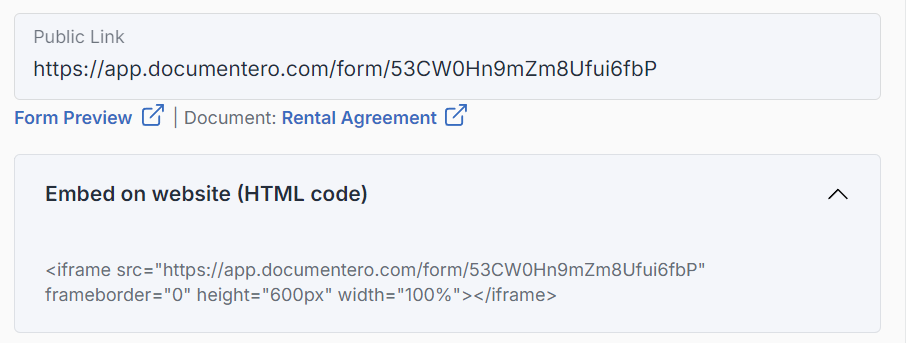
A: First, share the document generation form. Then, copy and paste the provided iframe code snippet into your website. You can customize the form's styling using available parameters. [Embeed & customize shared form on your website](/documentation/forms/shared-forms/embeed-and-customize-shared-form-on-your-website)
**Q: Can I use emojis in the text passed to Documentero?**\
**A:** Documentero supports basic Unicode text emojis (✅ ❌ ✔️ ✖️ ➕ ➖ ➡️ ⬅️ ⚠️ ❗ ❕ ℹ️ ✉️ ✏️ ⏰ ⌛ ☑️ ☐ ☒). Graphical or custom emojis (such as platform-specific ones) are not supported.
**Q: Why can’t I upload a `.docx` or `.xlsx` file with macros or embedded content?**\
**A:** For security and reliability reasons, our platform only supports standard .docx/.xlsx templates without macros, embedded objects and other unsafe elements. This prevents unsafe code execution and ensures that all generated documents open correctly for every user.
**Q: I got an “External file link detected” error after uploading my Word template.**\
**A:** This means your document is linked to an external template file stored on your computer, for example: `file:///C:\ProgramData\...\Custom template.dotx`. To keep documents secure and portable, such links must be removed. Open the document in Word → enable the **Developer** tab → go to **Document Template** (or **Word Add-ins**) → remove the local file path (e.g., `C:\...`), then save and reupload the template.
Q: **When will I receive usage warning emails?**
You will receive automatic quota warning emails when your account reaches 80%, 90%, and 100% of its available document generation quota for the current cycle. Quota warning emails are sent to the email address of the account owner associated with the workspace.
# Templates Introduction & Tutorial
You can start creating your document templates in any editor. You need to replace all fields that you are expecting to fill automatically with special tags sourrended by special “curly” brackets.
* If you want to control particular place in document use Fields
* If you want to control whole sections/page/parts of document use Sections
* If you want to create/calculate part of document based on calculations or conditions use Smart Fields or Smart Sections
> You can create templates step by step. You can upload template with more fields later on
# Template Upload/Re-upload
### Upload new template
* Go to documents from main navigation
* Navigate to folder that you want to create new document template (optional)
* Use upload form: Select document template from your disk
* Hit upload template button. After a while new template should appear on the document list

### Re-upload Template
If you change content of template and you want keep all customization options for all fields and shared forms connected to document template you should re-upload template to existing document instead of adding new one.
> Existing form fields will stay intact in terms of configuration. Fields that do not exist in new template will be removed. Fields that are added compared to previous template will be added at the end of the list.
* Go to documents from main navigation
* Find document that you want update with new template
* Find Re-Upload button under Template Name
* Choose updated template from disk and submit.

### Templates Security
For security and compatibility reasons, our platform does not accept `.docx` or `.xlsx` templates that contain non-secure content such as macros, embedded objects, or external data connections. Only standard Office templates without executable or linked elements are supported. This ensures that all generated documents remain safe, consistent, and compatible across environments.
# Organize Templates into Folders
If you operate on multiple documents it could be helpful to group them into folders. Folders list appear above document templates list once you add first folder.
### Create new folder

* Navigate to documents
* Use New Folder button
* Provide folder name.

### Move document to folder

* Find document to move
* Use Edit Icon
* You can select document’s folder from list
### Delete Folder

* Find folder to delete
* Use Delete Icon
* Confirm
> If folder consist any documents, all of them together with their configurations will be removed !
# Templates Gallery
Explore our **templates gallery** featuring **over 1,000** professionally designed document and spreadsheet **templates in .docx (Word) and .xlsx (Excel)** formats—ready to use for document automation across various industries.
{% embed url="" %}
# Integrations Gallery
Explore our **integration gallery** featuring **over 800** integration examples with use-cases and tutorials. Learn how to integrate Documentero with **hundreds of apps** using **Zapier, Make, n8n, Power Automate, and more.**
{% embed url="" %}
# Fields
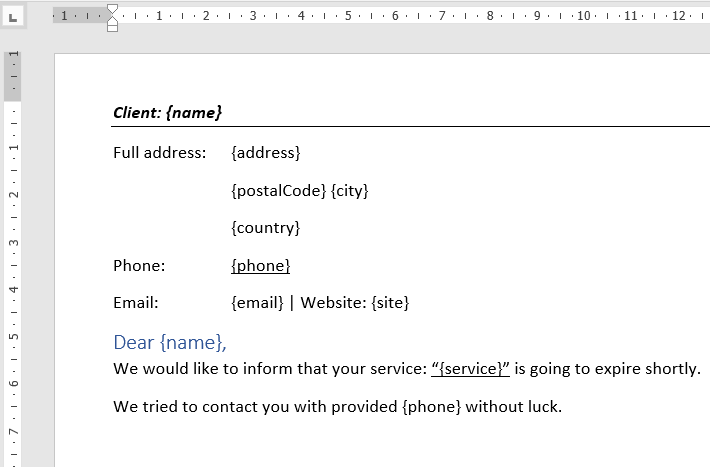
You need to provide placeholders in the document template (field name in curly brackets). It's as simple as that.
If the same field is repeated in other parts of the template we will detect that and fill the document accordingly (with the value provided only once).
Fields could be used inside Sections
### Recommended Field Name Rules
Omit special characters and spaces in field name. It will be easier to refer them in Smart Fields
> *We recommend camelCase rules for field naming e.g. **fieldWithMultipleWords**. If you want to use fields in Smart Sections & Smart Fields please also omit numbers and special characters in field names*
Use Special Filters to modify results
```
{field | toFixed:2} > Sets number decimal precision 5300.1 > 5300.10
{$ labor + parts | format:2:',':'.'} > Sets number decimal precision, thousand separator, decimal separator e.g. 5300.1 > 5,300.00
{$ labor + parts | inWords:'en'} > Spells Number in words based on selected language
```
### Multiline text
If you want to pass text in multiple lines (e.g. from API call or integration) you can use new line mark "\n" when passing text to your field.
```
"field": "first line \n second line" => In output document second line will go to next line
```
If you need more advanced formatting consider using [Fields with HTML Support](/documentation/templates/fields-html-support)
# Sections
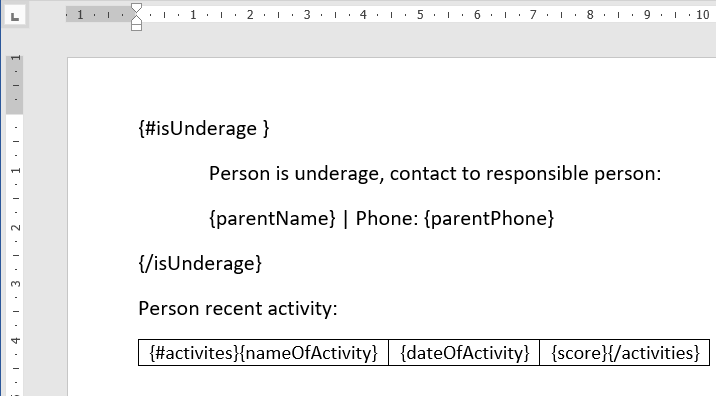
Sections could be used to show or hide part of document. It could be paragraph / table row / list item or whole document page. Sections differ from fields that has starting and ending point.
### Simple Section
Section w/o fields is detected when there is no additonal fields provided within section. Simple sections are visible in form as checkbox fields.
```
{#isUnderage}
Member is underage
{/isUnderage}
```
Simple section (no fields defined)
```
Dear {name},
{#isUnderage}
User {name} is underage
{/isUnderage}
```
Simple section (only field is inherited from upper level)
### Inverted Section
If you want to show block of document when section is undefined (unchecked/list not provided) feel free to use “^” special section tag.
```
{#isUnderage}
Member is underage
{/isUnderage}
{^isUnderage}
Member is an adult
{/isUnderage}
```
### Sections with Fields
Sections could consist of additional fields that are valid per each section.
#### One-block / Repeated block
Sections could work to show/hide part of document conditionally once or repeat part of document multiple times based on form input.
#### Upper Level Fields
If you use exact same field names as in upper context value will be inherited from upper level and omitted as part of the section.
#### Conditional part of document with additional fields
You can create sections with fields to show/hide part of the document. If we detect additional fields within section user will be asked for filling in additional fields.
```
{#isUnderage}
Member is underage.
Parent Name: {parentName} Parent Phone: {parentPhone}
{/isUnderage}
```
Fields “parentName” and “parentPhone” will appear on form only if section field will be selected.
#### Table Rows using Sections (Repeated Block)
You can use sections with fields to define rows in table. As a template you just need to use one table row.
In first column include section start tag, in last columns use section close tag
| Product Name | Product Category | Price per item |
| ------------------ | ---------------- | ------------------- |
| {#products} {name} | {category} | {price} {/products} |
You can create sections / table summaries combining sections and smart fields and filters (You should use them outside of the section/columns definition)
Example:
```
{$ products.length } - Display number of items in section 'products'
{$ products.length ? 'Products Exist' : 'No products' } - Show text if there are items added to section 'products'
{$ products.length > 1 ? 'There are multiple products' : 'No products' } - Show messages based on the number of items in section 'products'
```
Example with sum filter:
```
{$ products | sum:'price'} - sums up a field 'price' from all the items in section 'products'
{$ products | sum:'quantity'} - sums up a field 'quantity' from all the items in section 'products'
{$ products | sum:'price*quantity' | format} - sums up a 'price' multiplied by 'quantity' and from all the items in section 'products, round up to 2 decimal points using filter 'format'
You can also sum only specific items from your sections based on condition using additional "filter"
{$ products | filter:' category == "car" ' | sum: 'price'} - sums up a field 'price' from all the items in section 'products' that 'category' property is set to 'car'
```
Please remember to wrap your expression after sum: into quotes!
Example usage in table:
| Product Name | Product Category | Price per item |
| ---------------------------------- | ---------------- | ---------------------------------- |
| {#products} {name} | {category} | {price} {/products} |
| No of Products: {$products.length} | | Total: {$ products \| sum:'price'} |
In the example above there is an extra footer row added to the table (outside of the section) indicating how many products are in the table and another one that sums up a field 'price' from all the rows
Product Name
Product Category
Price per item
{#products} {name}
{category}
{price} {/products}
Subtotal: {$ subtotal = products | sum:'price'}
Total (with 23% VAT): {$ subtotal * 1.23 | format}
In the example above there is an extra footer row added to the table (outside of the section) that sums up a field 'price' from all the rows displays it and saves it as a "subtotal" template variable, then the variable is used to calculate Total value in Smart Section and formatted accorindgly.
#### Loop items (Repeated Block)
You can create any blocks, paragraphs, cards, or mini table and use it as template. Whole template block will be repeated amount of times it’s repeated in input form.
See example below.
```
{#products}
Product: {name} | Category: {category}
Desc:
{desc}
--------------------------------------
Price: {price}
{/products}
```
#### Special field for ordinal number - $iterator (Repeated Block)
You can use special smart tag “{$iterator}”. It could be used within section template.
For each section it will generate consecutive numbers: 1,2,3,4 without need to enter them manually as a field.
| Product Number | Product Name | Product Category | Price per item |
| ----------------------- | ------------ | ---------------- | ------------------- |
| {#products} {$iterator} | {name} | {category} | {price} {/products} |
# Fields - Images
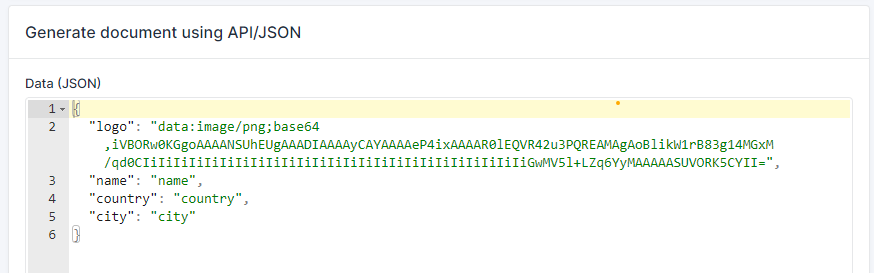
You can inject logos, photos or images into your documents dynamically. It's possible using special field type (available in API mode using Base64 or Image URL).
### Adding a dynamic image to document template
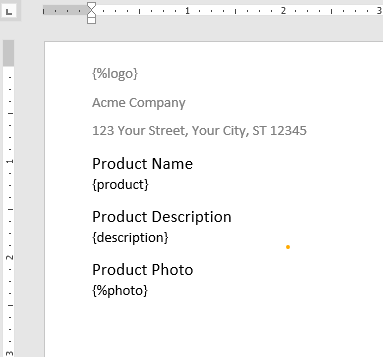
You can add dynamic images to your templates using the "%" prefix. Examples: {%logo}, {%photo}, {%product}
### Dynamic Image Size
By default image size will be the same as the size of the image that is being sent, however, in most cases, we would like set width/height manually or limit the maximum width or maximum height to keep the aspect ratio of the image (recommended). You can do that by using **"size"** and **"maxSize"** formatters and providing desired width and height.
Most of the time you need to set maxSize (otherwise your image could be cut or distorted)
**maxSize:\[width]:\[height]**
**size:\[width]:\[height]**
Examples:
```
{%image1}
{%image2 | size:250:100}
{%image3 | maxSize:300:500}
```
### How to pass a image using Form
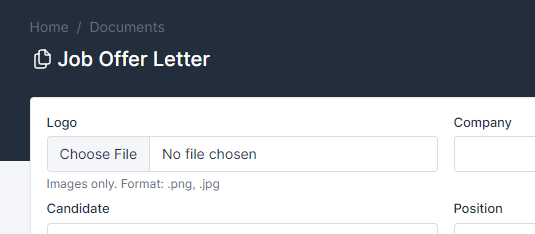
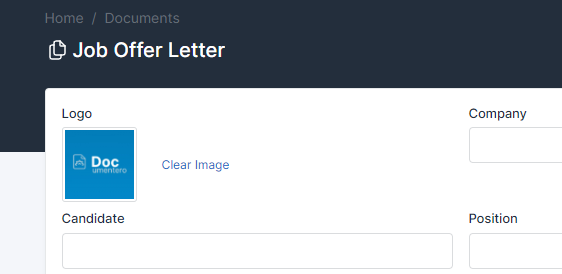
Once you upload your document template that consists image tag ( e.g. {%logo} ) it will add an image type field to the template form. Users can select an image from the form and it will be rendered as part of the document
### How to pass the image data using API
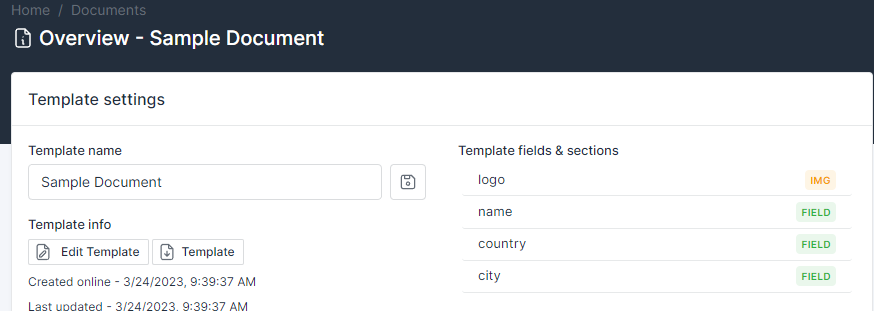
Once you upload your document template that consists image tag ( e.g. {%logo} ) it should be detected on the template overview page
You can send images over API in two ways:
* **as image url (provide full url to image)**
* **as text using base64 format (see example below)**
Supported file types: **jpg, png, svg.**
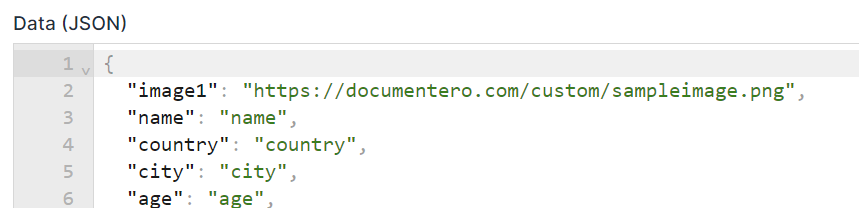
Sample Small Image example will be added to your API section:
### Passing dynamic list of images
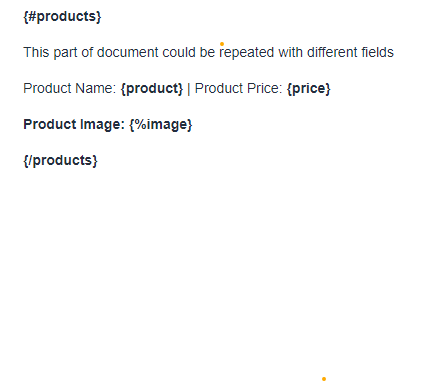
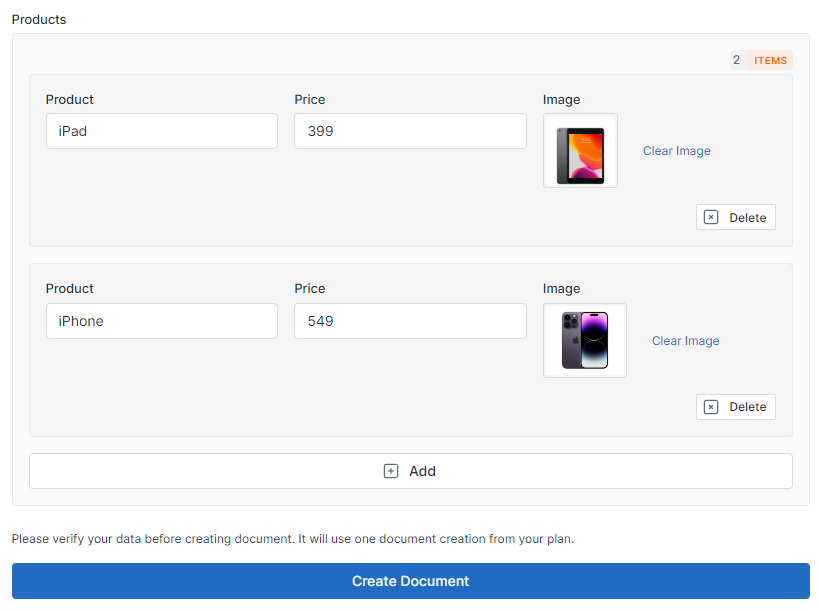
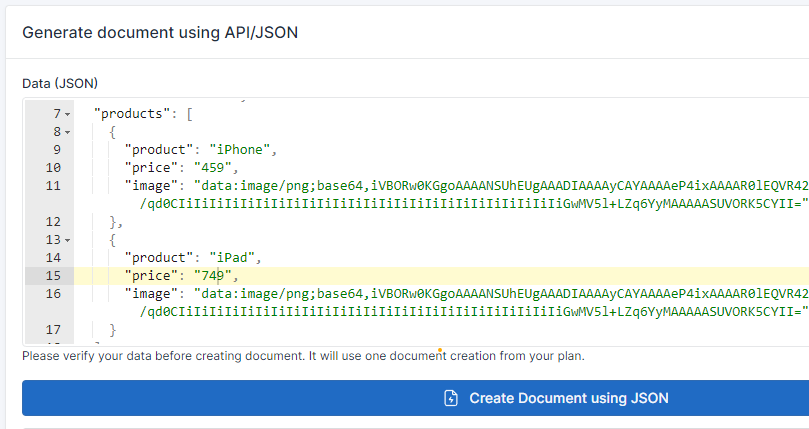
If you would like to pass multiple images we recommend combining section and image field
Example:
# Fields - QRCodes
You can dynamically inject QR codes into your documents. They can store text, URLs, or other information that can be scanned by mobile phones and scanners.
### Adding a dynamic QRCode to document template
You can add dynamic QR codes to your templates using the `>` prefix.\
Examples: `{>companyLink}`, `{>paymentLink}`.
Template that contains QRCode fields
Output document with generated QRCodes based on passed data
### QRCodes data limits
QR codes are limited to 1,000 characters and 50 lines. If you exceed either of these limits, the QR code will not appear in the output document.
### QRCode Size
By default, the size of the QR code is determined by the amount of data it contains (more data results in a larger QR code). You can manually set the width and height, or limit the maximum width or height to preserve the aspect ratio using the `"size"` and `"maxSize"` formatters. We recommend not changing the size of the QR code to ensure readability. If needed, use `"maxSize"` to constrain dimensions while maintaining quality.
Examples:
```
{>qrcode}
{>qrcode2 | maxSize:300:500}
```
### How to pass data for QRCode
Once you upload your document template containing a QRCode tag (e.g., `{>link}`), a corresponding text field will be added to the template form. Users can enter a value into this field, and it will be rendered as a QR code in the generated document.
**How to pass QRCode data using Forms**
By default, QR code fields are displayed as multiline text fields where you can enter the content to be included in the QR code. You can customize them just like any other text field.
**How to pass the QRCode data using API**
You can provide data for the QR code through the API. To include multiline text, use the newline character `"\n"`.
# Fields - Links
You can pass Links as a field value to get the clickable formatted link inside the output Document.
You must add "&" before your field name to achieve that.
So the final syntax should be: **{\&fieldName}**
```
{&link1} => Pass "https://google.com" to field "link1" => Link: "https://google.com" in output Document
```
```
{&link2} => Pass "https://google.com[Google Search]" to field "link2" => Link to google.com with text: "Google Search" in output Document
```
Links automatically are blue and underlined in the output document. e.g. [http://google.com](http://google.com/)
You can optionally define a link text by adding custom text in curly brackets: e.g. Text]
#### Link styling
All dynamically created links use the **“Hyperlink”** or **“InternetLink”** style (and **“Followed Hyperlink”** / **“Visited InternetLink”**, respectively) from your .docx document template.
By default, links are styled with blue text and an underline, regardless of the placeholder formatting.\
You can modify the **“Hyperlink”** or **“InternetLink”** styles in your template — these styles will be applied to all dynamically created links in your document.
# Fields - HTML Support
You can pass HTML as a field value to get the dynamic formatted text inside the output Document.
You need to add an "\*" in front of your field name The final syntax should be: **{\*fieldName}**
```
{description} - Regular Field that supports only text and newline character
{*description} - Special field that supports HTML as input
```
#### Supported HTML Tags
There is a limited number of HTML tags that you can use for HTML to Document conversion here is the list:
```
```
#### Hints
* Font settings for text in HTML content will be inherited from your template's Regular Text Styling Settings. You can change them in your document template styling unless they are explicitly defined with styling properties.
* Unknown tags in HTML will be omitted in the output document.
* HTML tags cannot be used inline with other text or bindings. Use them in a separate paragraph:
```
Some text {*description} rest of text ====> INCORRECT
{#section} {*description} {/section} ====> INCORRECT
Some text:
{*description}
rest of text ====> CORRECT
{#section}
{*description}
{/section} ====> CORRECT
```
# Fields - Markdown Support
You can pass Markdown syntax as a field value to get the dynamic formatted text inside the output Document.
You need to add an "!" in front of your field name The final syntax should be: **{!fieldName}**
```
{description} - Regular Field that supports only text and newline character
{!description} - Special field that supports Markdown as input
```
#### Supported Markdown Elements
We support all basic markdown elements and syntax. Please check one of the Markdown Guides:\
# Markdown Cheatsheet
## Headings
# Heading 1
## Heading 2
### Heading 3
## Emphasis
*italic* or _italic_
**bold** or __bold__
***bold italic***
~~strikethrough~~
## Links & Images
[link text](https://documentero.com)
## Lists
Unordered:
- Item A
- Item B
- Item C
Ordered:
1. First
2. Second
Nested:
- Parent
- Child
## Tables
| Name | Age |
|-------|-----|
| Alice | 24 |
| Bob | 30 |
#### **Links**
If you pass link elements they will be added as clickable hyperlinks to your document
```
[link text](https://documentero.com)
```
#### **Images**
If you pass image elements with a public url they will be downloaded and added to output document
```

```
#### **Mermaid Diagrams**
You can pass mermaid charts, and diagrams using the syntax below. Read more about mermaid syntax:
````
```mermaid
graph TD;
A-->B;
A-->C;
B-->D;
C-->D;
```
````
#### Hints
* Font settings for text in Markdowncontent will be inherited from your template's Regular Text Styling Settings. You can change them in your document template styling unless they are explicitly defined with styling properties.
* HTML tags cannot be used inline with other text or bindings. Use them in a separate paragraph:
```
Some text {!description} rest of text ====> INCORRECT
{#section} {!description} {/section} ====> INCORRECT
Some text:
{!description}
rest of text ====> CORRECT
{#section}
{!description}
{/section} ====> CORRECT
```
# Fields - Mermaid Support
You can add Charts/Diagrams into your templates inside HTML/Markdown syntax.
You can include charts, diagrams, and other visual elements using the Mermaid syntax within designated fields of your document template. Supported diagram types include flowcharts, sequence diagrams, class diagrams, Gantt charts, and entity-relationship models and more.
**Check Mermaid Tutorials & Syntax** -
This feature enables users to embed complex, structured visual content using simple, text-based definitions directly within their document generation workflow.
#### HTML/Markdown Template Fields
Both Markdown and HTML fields support mermaid elements passed as content
```
{*htmlField}
{!markdownField}
```
#### Usage in HTML fields
Include mermaid syntax in **paragraph with class "mermaid"**
```
This is header for diagram below
graph TD;
A-->B;
A-->C;
B-->D;
C-->D;
```
#### Usage in Markdown fields
Include mermaid syntax in **starting with\`\`\`mermaid and end syntax with \`\`\`**
````
# This is header for diagram below
```mermaid
graph TD;
A-->B;
A-->C;
B-->D;
C-->D;
```
````
#### Sample Output
# Fields - Formatters
You can use special formatters for Fields and Smart Fields
Quick examples:
```
{field | toFixed:2} > Sets number decimal precision 5300.1 > 5300.10
{field | format:2:',':'.'} > Sets number decimal precision, thousand separator, decimal separator e.g. 5300.1 > 5,300.00
{field | round:2} > Sets number decisal precision and it rounds value to specific precision e.g. 5300.5783 > 5300.58
{field | roundUp:2} > Sets number decisal precision and it rounds value up to specific precision e.g. 5300.5783 > 5300.58
{field | roundDown:2} > Sets number decisal precision and it rounds value down to specific precision e.g. 5300.5783 > 5300.57
{field | inWords:'en'} > Spells Number in words based on selected language 5300.1 > five thousand three...
{field | date:'de-DE'} > Formats Date in specific format
{field | addDays:7} > Add specified number of days to provided input date
{field | time:'en-US':'America/New_York'} > Formats Time in specific format and timezone
{field | uppercase } > Sets text uppercase e.g. "TEST"
{field | lowercase } > Sets text lowercase e.g. "test"
{field | capitalize } > Capitalize first letter of text e.g. "Test"
{field | extractBefore:'st' } > Extract part of text before match e.g. "Testing" > "Te"
{field | extractAfter:'st' } > Extract part of text after match e.g. "Testing" > "ing"
{field | trim } > Trim whitespace before and after text e.g. " Test " > "Test"
```
### Special Field formatter “format”
If you want format number that reflect money in some specific world format you can do that using format filter. It will allow you set following parameters:
* decimal points (default: 2)
* thousands delimiter (default: ',')
* decimal delimiter (default: '.')
**\[fieldName] | format:\[decimalPoints]:"\[thousandDelimiter]":"\[decimalDelimiter]"**
```
{field} > 5300.1
{field | format} > 5300.1 > 5,300.10
{field | format:3} > 5300.1 > 5,300.100
{field | format:2:'.':','} > 5300.1 > 5.300,10
{field | format:2:'-':','} > 5300.1 > 5-300,10
{field | format:4:' ':'.'} > 5300.1 > 5 300.1000
```
### Special Field formatter “toFixed”
It’s pretty common that you need to calculate the field and see the output in specific precision (especially if you calculate price/cost in some currency).
E.g. If the result of the calculation are 1.54212 > the output will be converted to 1.54. It's a simplified format function. **If you want to round numbers to specific precision use the "round" filter instead.**
```
{field} > 5300.1
{field | toFixed} > 5300
{field | toFixed:2} > 5300.10
{field | toFixed:3} > 5300.100
{field | toFixed:0} > 5300
{field2} > 499.997
{field2 | toFixed} > 499
{field2 | toFixed:2} > 499.99
```
### Special Field formatter "round", "roundUp", "roundDown"
This filter works in a similar way as "toFixed" however it rounds / rounds up / rounds down value to specific precision
```
{field} > 5300.1
{field | round} > 5300
{field | round:2} > 5300.10
{field | roundUp} > 5301
{field | roundDown} > 5300
{field2} > 499.997
{field2 | round} > 500
{field2 | round:2} > 500.00
{field2 | roundDown:1} > 499.9
{field3} > 5.56789
{field3 | round} > 6
{field3 | round:2} > 5.57
{field3 | roundDown:2} > 5.56
{field3 | roundUp} > 6
{field3 | roundDown} > 5
```
### Special Field formatter “inWords”
It’s quite common that you need your value being spelled in words on your document
```
{field} > 501
{ field | inWords: 'en'} > five hundred and one
{ field | inWords: 'pl'} > pięćset jeden
More Advanced Example:
{price} USD > 149.99 USD
{$ price | format:0 | inWords:'en'} dollars and {$ price % 1 * 100 | format:0 | inWords:'en'} cents > one hundred and forty-nine dollars and ninety-nine cents
```
E.g. If results value is 4500, output will be converted to “four thousand and five hundred”
Let’s apply this to example above to get proper USD values:
By Default inWords is set to English but it support following languages:
```
en (English, default)
ar (Arabic)
cz (Czech)
dk (Danish)
de (German)
es (Spanish)
fr (French)
fa (Farsi)
he (Hebrew)
hu (Hungarian)
id (Indonesian)
it (Italian)
ko (Korean)
lt (Lithuanian)
lv (Latvian)
nl (Dutch)
no (Norwegian)
pl (Polish)
pt (Portuguese)
ru (Russian)
sr (Serbian)
tr (Turkish)
uk (Ukrainian)
zh (Chinese)
```
### Special Field formatter "date"
You can display provided date in format you desire in output document (if Date is provided in format that could be parsed).
It supports three optional parameters:
**{ field | date:'\[format]':'\[input]':'\[style]'}**
**Parameters:**
**format \[optional]** - output date locale format using language code | **Default: 'en-US'**
```
'en-US', 'en-GB', 'en-AU', 'en-CA', 'fr-FR', 'de-DE', 'es-ES', 'es-MX', 'it-IT', 'pl-PL', 'nl-NL', 'pt-BR', 'ja-JP', 'zh-CN', 'hi-IN'....
```
**input \[optional]** - input format of date if provided as a string, recommended to set to prevent confusion (month vs days in first place). | **Default: 'auto' - Detected automatically**
* When your date is an string date for example `10/03/2026`, `input` acts input format
```
'YYYY-MM-DD', 'DD/MM/YYYY', 'MM/DD/YYYY', 'YYYY/MM/DD', 'DD.MM.YYYY', 'MM-DD-YYYY'
```
* When your date is passed as an ISO date (for example `2024-01-05T10:00:00Z`), `input` acts as the desired date output timezone
```
'UTC', 'Europe/London', 'Europe/Berlin', 'America/New_York', 'Asia/Tokyo'....
```
{% hint style="info" %}
* For dates like `05/01/2024`, always set explicit `input` format to avoid confusion.
* For ISO values like `2024-01-05T10:00:00Z`, set `input` to timezone when timezone-specific output matters. (Use valid timezone names - `Europe/Berlin`, `UTC`, etc...)\
{% endhint %}
**style \[optional]** - date display style | **Default: Auto selected - depends on "format"**
```
'full', 'long', 'medium', 'short'
```
Examples for date:
```
{field} ---> 4/28/2023
{field | date:'en-US'} ---> 4/28/2023
{field | date:'de-DE'} ---> 28.4.2023
{field | date:'en-GB'} ---> 28/04/2023
{field | date:'fr-FR'} ---> 28/04/2023
{field | date:'es-ES'} ---> 28/4/2023
{field | date:'ja-JP'} ---> 2023/4/28
Style Formats:
{field | date:'en-US':'DD/MM/YYYY':'short'} ---> 4/28/23
{field | date:'en-US':'DD/MM/YYYY':'medium'} ---> Apr 28, 2023
{field | date:'en-US':'DD/MM/YYYY':'full'} ---> Friday, April 28, 2023
Input Formats:
{field2} ---> 03/10/2026
{field2 | date:'en-US':'DD/MM/YYYY':'medium'} ---> Oct 3, 2026
{field2 | date:'en-US':'MM/DD/YYYY':'medium'} ---> Mar 10, 2026
{field2a} ---> 05.01.2024
{field2a | date:'en-US':'DD.MM.YYYY':'medium'} ---> Jan 5, 2024
{field2a | date:'en-US':'MM.DD.YYYY':'medium'} ---> May 1, 2024
{field2b} ---> 31/01/2026
{field2b | date:'en-US':'auto':'medium'} ---> Jan 31, 2026
{field2b | date:'en-US':'DD/MM/YYYY':'medium'} ---> Jan 31, 2026
ISO Date Format:
{field3} ---> 2026-03-10T10:30:00Z
{field3 | date:'en-US':'UTC'} ---> 3/10/2026
{field3 | date:'en-US':'Pacific/Pago_Pago'} ---> 3/9/2026
{field3 | date:'en-US':'Europe/Berlin'} ---> 3/10/2026
{field3 | date:'en-US':'Asia/Tokyo'} ---> 3/10/2026
{field3 | date:'en-US':'Pacific/Kiritimati'} ---> 3/11/2026
```
{% hint style="info" %}
You can also use **current date** and format it using date formatter. [See more](/documentation/templates/smart-fields#show-current-time-and-current-date-with-format-and-timezone)
{% endhint %}
### Special Field formatter "addDays"
You can add specific number of days to provided date or currentDate. (e.g. Current Date + 7 days)
It supports two parameters:
**{ field | addDays:\[days] : '\[inputFormat]'}**
**days \[required]** - number of days that should be added to provided date
**inputFormat \[optional]** - input format of date if provided as a string, recommended to set to prevent confusion (month vs days in first place). | **Default: Detected automatically**
```
'YYYY-MM-DD', 'DD/MM/YYYY', 'MM/DD/YYYY', 'YYYY/MM/DD', 'DD.MM.YYYY', 'MM-DD-YYYY'
```
Examples of adding days to input dates:
```
{field} ---> 2025-03-15
{field | addDays:5} ---> 2025-03-20
{field} ---> 05/21/2025
{field | addDays:3} ---> 05/24/2025
{field} ---> 10/11/2025
{field | addDays:3:'MM/DD/YYYY'} ---> 10/14/2025
{field | addDays:3:'DD/MM/YYYY'} ---> 13/11/2025
// Use addDays on currentDate
{$currentDate | addDays:3 | date:'en-US'} ---> Adds 3 days to currentDate and use'en-US' format
{$currentDate | addDays:7 | date:'de-DE'} ---> Adds 7 days to currentDate and use'de-DE' format
```
### Special Field formatter "capitalize", "uppercase", "lowercase"
You can use one of "capitalize", "uppercase", and "lowercase" filters if you want to change the formatting of text to uppercase or lowercase. You can make only first letter uppercase using capitalize. Check examples below:
```
{ field } > teSt
{ field | uppercase } > TEST
{ field | lowercase } > test
{ field | capitalize } > TeSt
```
### Special Field formatter “hide"
You can use "hide" filter if you want to hide field output on regular field. Useful if you need to use field value withing Smart Fields or Smart Sections but you don't want to show actual value in the document
```
{field | hide}
Field will be defined in document structure but nothing will be visible in the document
{#$ field == "Yes"}
This part of document will apear if field equals Yes
{/}
You can use field within Smart Sections
{$ field == "Yes" ? "TextIfYes" : "TextIfNo" }
You can use field within Smart Fields
```
### Special Field formatter “extractBefore", "extractAfter"
Extract part of text before or after provided matching characteres.
```
{field} > mail@domain.com
{field | extractBefore:'@' } > mail
{field | extractBefore:'.com' } > mail@domain
{field | extractAfter:'@' } > domain.com
{field | extractAfter:'domain' } > .com
```
### Special Field formatter “trim"
Trim whitespace before and after text
```
{field} > test
{field | trim } > test
```
\
*Note: Backslash is escape character for matching special characters if you want to extract before or after backslash '\\' use double blackslach as match e.g. `extractAfter:'\\'`*
# Smart Fields
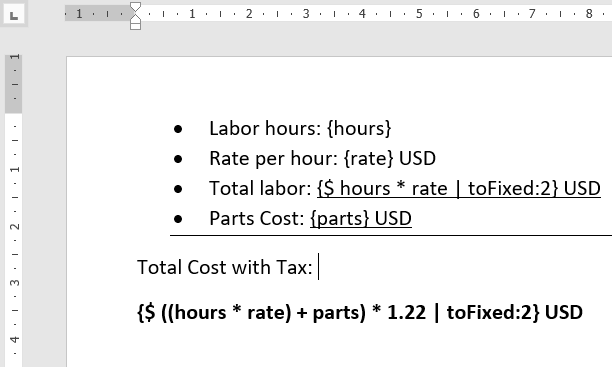
Smart fields use a special tag that starts with "$". They cannot be provided by a user in the form. Those fields are build or calculated based on existing nonsmart regular fields.
### Smart Fields to calculate values
```
Labor: {labor} USD
Parts: {parts} USD
Total: {$ labor + parts} USD
Total + Tax: {$ (labor + parts) * 1.22}
```
You can use smart field to do simple and advanced calculations based on provided user form input.
> Make sure that you pick “NumberField” in form customization to prevent users from using text instead of numbers for fields that you want use for your calculations.
### Smart Fields Numbers vs Strings
If you want to accept strings and convert them into numbers for further calculations (useful if you integrate with the external system) you can use the special syntax within smart fields like : +\[fieldname]. Example:
```
Assuming:
field1: "2",
field2: "5"
field3: 2,
field4: 5
{$ field1 + field2 } ==> 25
{$ field3 + field4 } ==> 7
{$ +field1 + +field2 } ==> 7
// Converts "2" into Number 2 and "5" into 5
```
### Use Special Filters to modify results
Smart Fields for conditions
You can use conditions to output element based on value provided from different field (from user)
General Condition Schema:
```
{$ [CONDITION] ? [TEXTIFTRUE] : [TEXTIFFALSE]}
```
Examples:
```
{$ FIELDNAME == 'VALUETOCOMPARE' ? 'textIfTrue' : 'textIfFalse'}
{$ FIELDNAME != 'VALUETOCOMPARE' ? 'textIfTrue' : 'textIfFalse'}
{$ FIELDNAME > NUMBERTOCOMPARE ? 'textIfTrue' : 'textIfFalse'}
{$ FIELDNAME < NUMBERTOCOMPARE ? 'textIfTrue' : 'textIfFalse'}
```
Supported operators:
```
== (Equal),
!= (Not Equal),
> (More Than)
< (Less Than)
&& (And)
|| (OR)
```
Example #1
```
Name: {name}
Surname: {surname}
Sex: {sex}
Full Name: {$ sex == 'woman' ? 'Mrs.' : 'Mr.'} {name} {surname}
```
Example #2
```
Name: {name}
Age: {age}
Status: {$ age > 18 ? 'Adult' : 'Underage'}
```
### Special Smart Fields
#### Show Current Time & Current Date with Format & Timezone
You can display current time or date using special smart field.
It supports two optional parameters:
**{$currentDate | date:'\[format]':'\[timezone]':'\[style]'}**
**{$currentTime | date:'\[format]':'\[timezone]'}**
**format \[optional]** - output format using language code - Examples: en-US, en-GB, fr-FR, de-DE, pl-PL, es-ES, it-IT | **Default: 'en-US'**
**timezone \[optional]** - timezone in IANA format - Examples: America/Chicago, Europe/Berlin, Europe/Warsaw, Europe/Rome | **Default: 'UTC' UTC Timezone**\
\
See list of Available Timezones:
**style \[optional]** - date display style | **Default: Auto selected - depends on "format"**
```
'full', 'long', 'medium', 'short'
```
If incorrect format / timezone will be provided Documentero will use default values.
```
Examples for time:
{$currentTime} ---> 6:57:14 PM
{$currentTime | time:'en-US'} ---> 6:57:14 PM
{$currentTime | time:'de-DE'} ---> 18:57:14
{$currentTime | time:'de-DE:'Europe/Berlin'} ---> 20:57:14
{$currentTime | time:'de-DE:'America/Chicago'} ---> 13:57:14
{$currentTime | time:'de-DE:'America/New_York'} ---> 14:57:14
{$currentTime | time:'en-US:'America/Chicago'} ---> 1:57:14 PM
{$currentTime | time:'en-US:'America/New_York'} ---> 2:57:14 PM
Examples for date:
{$currentDate} ---> 4/28/2023
{$currentDate | date:'en-US'} ---> 4/28/2023
{$currentDate | date:'de-DE'} ---> 28.4.2023
{$currentDate | date:'de-DE':'Europe/Berlin'} ---> 28.4.2023
{$currentDate | date:'de-DE':'Pacific/Pago_Pago'} ---> 27.4.2023 (Timezone can affect date)
{$currentDate | date:'de-DE':'Pacific/Kiritimati'} ---> 29.4.2023 (Timezone can affect date)
{$currentDate | date:'en-US':'UTC'} ---> 5/8/2025
{$currentDate | date:'en-US':'UTC':'short'} ---> 5/8/25
{$currentDate | date:'en-US':'UTC':'medium'} ---> May 8, 2025
{$currentDate | date:'en-US':'UTC':'long'} ---> May 8, 2025
{$currentDate | date:'en-US':'UTC':'full'} ---> Thursday, May 8, 2025
{$currentDate | date:'de-DE':'UTC'} ---> 8.5.2025
{$currentDate | date:'de-DE':'UTC':'short'} ---> 08.05.25
{$currentDate | date:'de-DE':'UTC':'medium'} ---> 08.05.2025
{$currentDate | date:'de-DE':'UTC':'long'} ---> 8. Mai 2025
{$currentDate | date:'de-DE':'UTC':'full'} ---> Donnerstag, 8. Mai 2025
// Use addDays on currentDate
{$currentDate | addDays:3 | date:'en-US'} ---> Adds 3 days to currentDate and use'en-US' format
{$currentDate | addDays:7 | date:'de-DE'} ---> Adds 7 days to currentDate and use'de-DE' format
```
# Smart Sections
### Overview
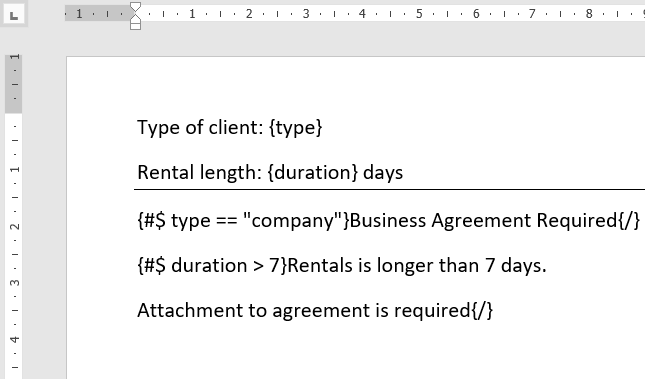
Smart sections use a special tag that starts with "#$". They are not shown on form.
They support calculations and conditions on regular fields like Smart Fields. The difference is that they can show or hide part of the template (like a paragraph or some text that appears based on some condition or value is higher than x).
> You can use Smart Section not only to show/hide part of document but also to show / hide whole pages.
### Syntax
```
{#$ CONDITION} Part of document you want to show/hide {/}
```
Supported operators:
* \== (Equal),
* != (Not Equal),
* \> (More Than)
* < (Less Than)
* && (And)
* || (OR)
#### Show Part of document based on condition
```
Name: {name}
Type: {type}
{#$ type == 'student'}
User {name} claims that is student
{/}
```
#### Show Part of document based on conditions
```
Name: {name}
Type: {type}
Age: {age}
{#$ type == 'student' && age > 18}
Member: {name} claims that is adult student
{/}
{#$ type == 'student' || type == 'employed'}
Member: {name} claims that is student or employed
{/}
{#$ age < 18}
Member is underage
{/}
{#$ type != 'student'}
Member is not a student!
{/}
```
#### Show Part of document if field contains value
If you want to show / hide part of document if field contains (part of text) specific text you can use "contains" and "notcontains" filter
```
{name} // Field name (assuming it's 'Alicia, Mark, Alfred')
{#$ name | contains:'Ali' }
This part ofdocument will appear if text contains 'Ali' (It will show as 'Ali' is part of 'Alicia, Mark, Alfred')
{/}
{#$ name | notcontains:'Ali' }
This part of document will appear if text does not contains 'Ali'
{/}
{#$ name | contains:'John' }
This part of document will appear if text contains 'John'
{/}
{#$ name | notcontains:'John' }
This part of document will appear if text does not contains 'John'
{/}
```
# Template Variables
### Template Variable Assignments
Sometimes you want to calculate some value based on data input and reuse it across the document. You can do that using assignments within smart fields then you can use assign value within Smart Fields or Smart Sections Multiple Times
```
Cost of labor: {labor} USD
Cost of parts: {parts} USD
Total Cost: {$ total = labor+parts } USD
Total Cost + Tax: {$ total * 1.22 } USD (Including 22% Tax)
{#$ total > 1000 }
Warning! Your total net cost exceeds 1000 USD
{/}
```
### Hidden Variables
You can combine variables with a [hide formatter](/documentation/templates/fields-formatters#special-field-formatter-hide). To create hidden calculated fields that you can use across your template. (E.g. You can define them at the top of the page based on values passed for document generation and use it in your template.
```
Cost of labor: {labor} USD
Cost of parts: {parts} USD
{$ total = (labor+parts) * 1.22 | hide}
Total Cost + Tax: {$ total} USD (Including 22% Tax)
Payment of {$ total} USD is due by 10-10-2026
```
### Conditional Variables
You can combine variables with Smart Fields to use conditions to define multiple reusable values based on passed data.
```
Field value: {sampleField} (Assuming it could be value 'opt1' or 'opt2')
{$ variableName = sampleField == 'opt1' ? 'Text if option 1' : 'Text if not'}
{$ anotherVariableName = sampleField == 'opt1' ? 'Different text if option 1' : 'Different text if not'}
```
# Charts & Diagrams
You can add Charts/Diagrams into your templates inside HTML/Markdown syntax.
Using [Fields - HTML Support](/documentation/templates/fields-html-support) or [Fields - Mermaid Support](/documentation/templates/fields-mermaid-support) you can add simple and complex charts, diagrams and other elements based on data passed during document generation.
**Check Mermaid Tutorials & Syntax** -
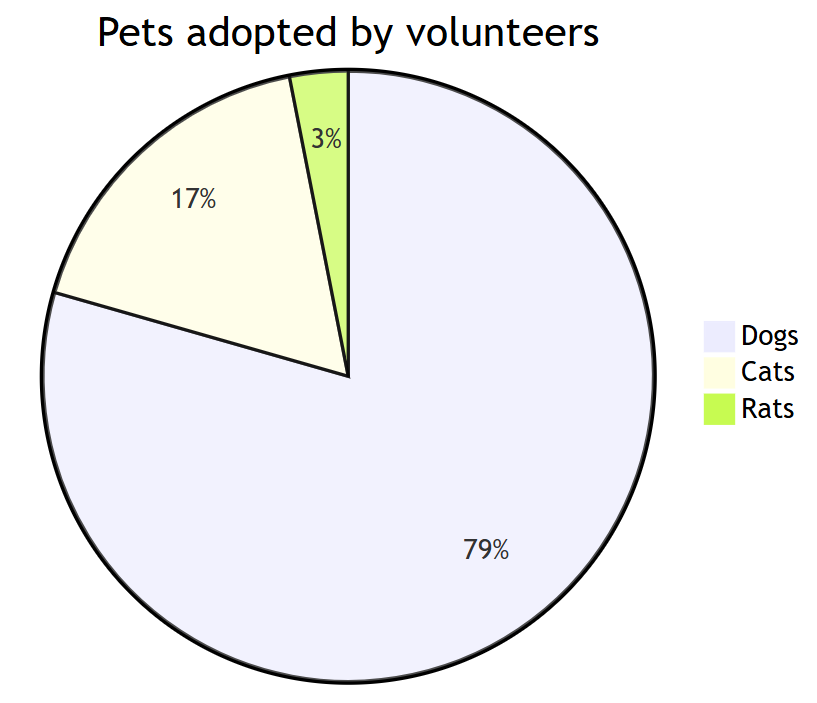
**Pie Chart**
```
pie title Pets adopted by volunteers
"Dogs" : 386
"Cats" : 85
"Rats" : 15
```
**Sequence Diagram Example**
```
sequenceDiagram
Alice->>John: Hello John, how are you?
John-->>Alice: Great!
Alice-)John: See you later!
```
#### Chart XY
```
---
config:
xyChart:
width: 900
height: 600
themeVariables:
xyChart:
titleColor: "#ff0000"
---
xychart-beta
title "Sales Revenue"
x-axis [jan, feb, mar, apr, may, jun, jul, aug, sep, oct, nov, dec]
y-axis "Revenue (in $)" 4000 --> 11000
bar [5000, 6000, 7500, 8200, 9500, 10500, 11000, 10200, 9200, 8500, 7000, 6000]
line [5000, 6000, 7500, 8200, 9500, 10500, 11000, 10200, 9200, 8500, 7000, 6000]
```
**Check more examples on Mermaid official documentation site** -
# Fields
You need to provide placeholders in the document template (field name in curly brackets).
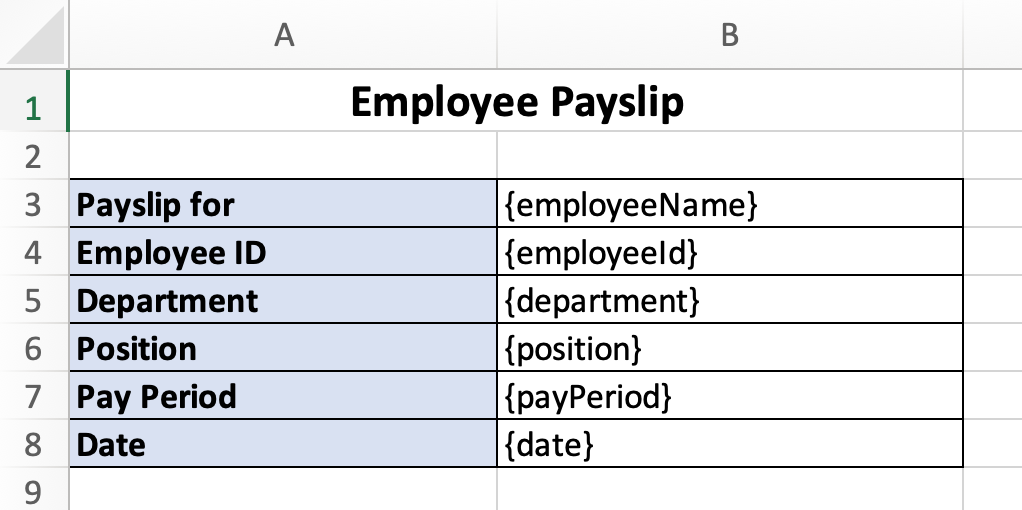
**A cell with a placeholder will be replaced with the provided value during document generation.**
If the same field (with the same name) is repeated in other parts of the template, we will detect it and fill the document accordingly using the value provided only once.
### Cell Type and Data Type
If you define cell type (e.g. Number, Date...) data type passed in respective field should match cell with placeholder.
> Service can automatically convert numbers (if they are valid Excel numbers) passed as string if type of cell is Number or Currency
### Field Name Rules
Do not use special characters or spaces in field names. This makes it easier to reference them during integrations and allows their use in formulas and other parts of spreadsheets.
> *We recommend using camelCase rules for field naming e.g. **fieldWithMultipleWords**.*
# Sections / Tables
Sections could be used to show dynamic repeatable items usually to fill Table data with multiple columns.
#### Syntax:
```
{#[sectionName].[propertyName]}
Examples: {#people.name}, {#people.age}
{#[fieldType][sectionName].[propertyName]}
Examples: {#%people.photo}, {#*people.html}, {#!people.markdown}, {#&people.link}
```
For each section item and property passed during document generation service will automatically add additional rows to sheet and shift all the cell content down below the section cell.
Template
Output
### Formulas
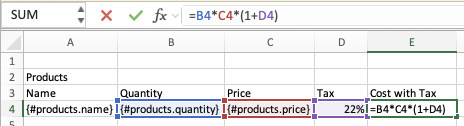
You can use formulas in your sheets that refer to individual cells or table columns using relative references or named table columns. Examples:
#### Formula example in dynamic table row with named table column reference
#### Formula example in regular dynamic row with relative reference
**If you provide multiple products new rows will be added to spreadsheet, additionally:**
* The 'Cost with Tax' column with a formula will be copied to new rows, and the **formula will automatically adjust to reflect the updated relative cell references** (B4, B5, B6, etc.)
* The 'Tax' column with a static value (along with any other cells containing content in the same row) will be copied to new rows as-is.
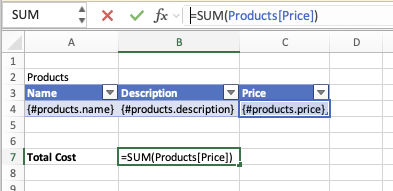
#### Formula for table data summaries
* Use named tables to easily reference entire columns of dynamically populated table data in summary formulas.
It is not always easy to build formulas that refer to all cells in a table—such as summing all rows—when the exact number of rows or columns is not known in advance.
**Best Practices for Using Tables with Placeholders in Templates**
* **Use named Excel tables**: Define your tables using Excel’s *Insert Table* feature. When a placeholder inside a named table expands rows or columns, the table range automatically updates to include the new data.
* **Reference table data using structured references**: Take advantage of structured table references in formulas (e.g., `=SUM(TableName[ColumnName])`) to dynamically refer to entire columns, even as the table grows or shrinks.
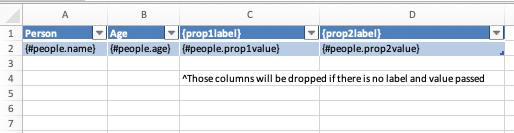
#### Optional Columns
If you use named tables with placeholders in the header and content cells, and no value is provided (or the value is empty), those columns will be skipped in the output document. The table range will be automatically adjusted accordingly.
#### Short Definition
If you have just one table/section in your document template you can use shorter placeholder definition. **If you skip section name it will be assumed as "Items"**
```
{#name} is shorter version of {#Items.name}
{#age} is shorter version of {#Items.age}
```
# Fields - Images
You can inject logos, photos or images into your spreadsheets cells dynamically. It's possible using special field type (available in API mode using Base64 or Image URL).
#### Syntax
You need to add an "%" in front of your field name The final syntax should be: **{%fieldName}**
```
{photo} - Regular Field that supports only regular text / number
{%photo} - Special field that creates images in output document
{#%people.photo} - Special field in table/section "people" that creates Images
```
### Adding a dynamic image to document template
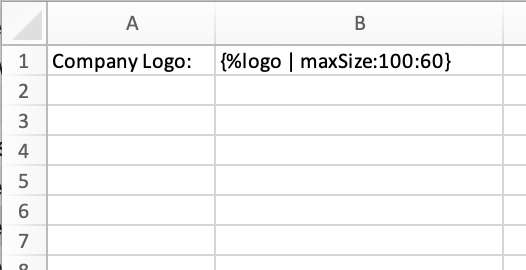
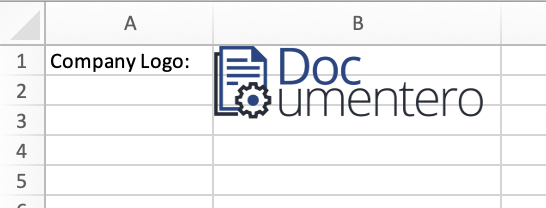
You can add dynamic images to your templates using the "%" prefix. Examples: {%logo}, {%photo}, {%product}. Image will be placed with starting point of top-left corner for placeholder cell and can overlap cells on the right/below image placeholder cell.
Template
Output
### Dynamic Image Size
By default image size will be the same as the size of the image that is being sent, however, in most cases, we would like set width/height manually or limit the maximum width or maximum height to keep the aspect ratio of the image (recommended). You can do that by using **"size"** and **"maxSize"** formatters and providing desired width and height.
Most of the time you need to set maxSize (otherwise your image could be cut)
Examples:
```
{%image1}
{%image2 | size:250:100}
{%image3 | maxSize:300:500}
```
### How to pass the image data using API
Once you upload your document template that consists image tag ( e.g. {%logo} ) it should be detected on the template overview page

You can send images over API in two ways:
* **as image url (provide full url to image)**
* **as text using base64 format**
Supported file types: **jpg, png, svg.**
Sample Small Image example will be added to your API section:

# Fields - QRCodes
You can dynamically inject QR codes into your spreadsheets. They can store text, URLs, or other information that can be scanned by mobile phones and scanners.
#### Syntax
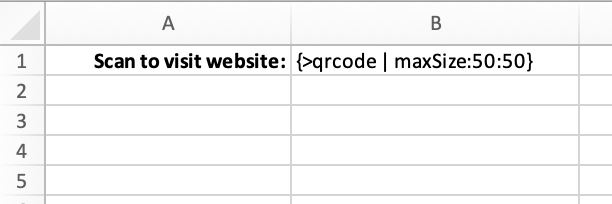
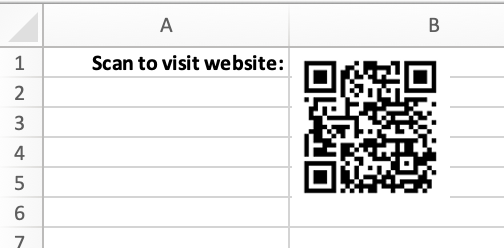
You need to add an ">" in front of your field name The final syntax should be: **{>fieldName}**
```
{website} - Regular Field that supports only regular text / number
{>website} - Special field that creates QRCodes
{#>people.website} - Special field in table/section "people" which creates QRCodes
```
### Adding a dynamic QRCode to document template
Template
Output
### QRCodes data limits
QR codes are limited to 1,000 characters and 50 lines. If you exceed either of these limits, the QR code will not appear in the output document.
### QRCode Size
By default, the size of the QR code is determined by the amount of data it contains (more data results in a larger QR code). You can manually set the width and height, or limit the maximum width or height to preserve the aspect ratio using the `"size"` and `"maxSize"` formatters. We recommend not changing the size of the QR code to ensure readability. If needed, use `"maxSize"` to constrain dimensions while maintaining quality.
Examples:
{>qrcode}
{>qrcode2 | maxSize:300:500}
**How to pass the QRCode data using API**
You can provide data for the QR code through the API. To include multiline text, use the newline character `"\n"`.
# Fields - Links
You can pass Links as a field value to get the clickable formatted link inside the output Document.
You must add "&" before your field name to achieve that.
So the final syntax should be: **{\&fieldName}**
```
{&link1} => Pass "https://google.com" to field "link1" => Link: "https://google.com" in output Document
```
```
{&link2} => Pass "https://google.com[Google Search]" to field "link2" => Link to google.com with text: "Google Search" in output Document
```
Links automatically are blue and underlined in the output document. e.g. [http://google.com](http://google.com/)
You can optionally define a link text by adding custom text in curly brackets: e.g. Text]
# Fields - HTML Support
You can pass HTML as a field value to get the dynamic formatted text inside the output Document.
#### Syntax
You need to add an "\*" in front of your field name The final syntax should be: **{\*fieldName}**
```
{description} - Regular Field that supports only regular text / number
{*description} - Special field that supports HTML as input
{#*people.description} - Special field in table/section "people" that support HTML as input
```
#### Supported HTML Tags
Excel cell formatting has limited capabilities compared to HTML formatting. Please see list below for supported html to excel formatted cell elements
```
, -> bold
, -> italic
, -> underline
,, -> strikethrough
-> subscript
-> text styles
Saving generated documents to Google Drive in make.com scenario
### Passing multiple objects (array of objects) into template sections
If you want to pass multiple items with different fields into sections in your document template we recommend using Array Iterator to map each field to the format expected by Documentero template in Make.com
* Add the Documentero step and select a template that has a section with subfields
* Before Documentero step add Array Aggregator and select your data source
* In the target structure type select your section name from Documentero template
* Map your data fields to Documentero section fields
* Go to Documentero step and Toggle "Map" selector to "ON" and select the mapped Array from the previous step
Before Documentero step add Array Aggregator and select your data source
Go to Documentero step and Toggle "Map" selector to "ON" and select mapped Array from previous step
### Send generated document to multiple email recipients
If you use action "Generate Document and Send as Email Attachment" you can send generated document to specified email. Documentero support sending documents to 5 reciepents. You need to provide emails separate by comma
### Video Tutorial
{% embed url="" %}
# N8N
You can integrate Documentero with N8N to generate Word, Excel or PDF documents in your workflows.
### Installation
* Open N8N instance
* Go to settings
* Open Community Nodes
* Click Install
* Provide community node name: "**n8n-nodes-documentero**"
* You can use
### Integration Page
Link:
### Tutorial Video
{% embed url="" %}
### Usage
* Create or upload template(s) (.docx/.xlsx) in your Documentero account: [https://app.documentero.com](https://app.documentero.com/)
[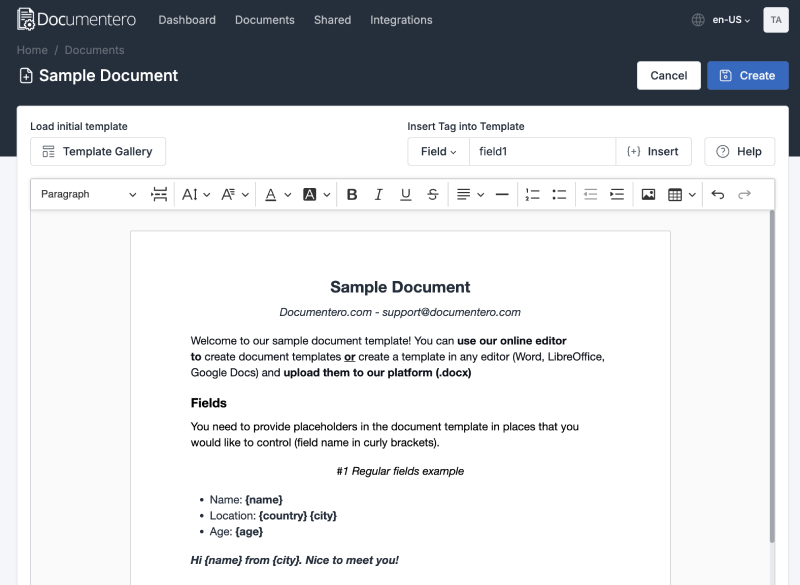](https://github.com/documentero/n8n-nodes-documentero/blob/HEAD/assets/documenterosample.png)
* Optional: After adding the template, set the output format and default filename on the template overview page in Documentero.
* Add a Documentero node to your workflow.
[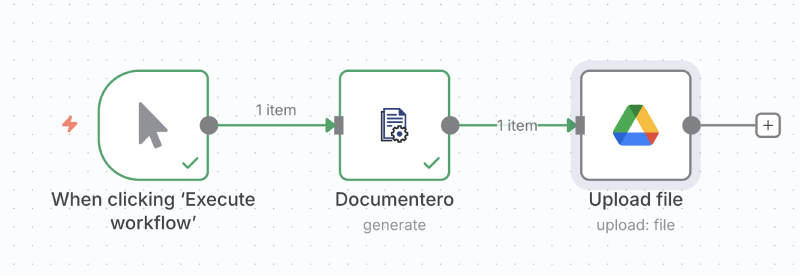](https://github.com/documentero/n8n-nodes-documentero/blob/HEAD/assets/n8nflow.png)
* Choose an operation:
* Generate Document — pass the generated file to downstream nodes (e.g., OneDrive, Google Drive, Outlook).
* Generate and Email Document — let Documentero email the generated file for you.
* Select the template to use from the “Document Template” dropdown.
* In Documentero (Template Overview → API/JSON), copy the JSON structure and paste it into the node’s Data (JSON) field, then fill in values.
[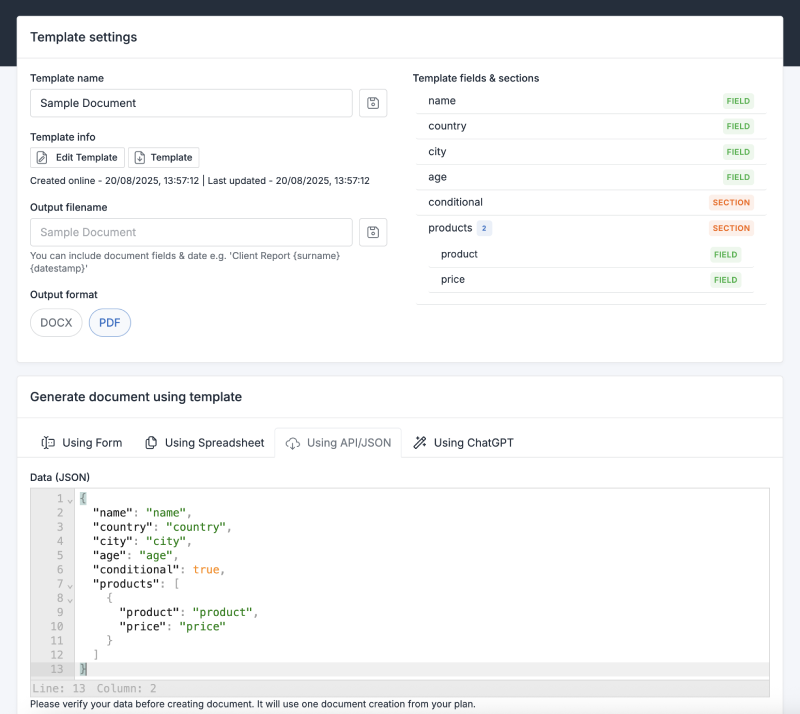](https://github.com/documentero/n8n-nodes-documentero/blob/HEAD/assets/documenterodef.png)
* Run the workflow.
* The node outputs the generated file under binary > data for further processing (.docx / .pdf / .xlsx).
[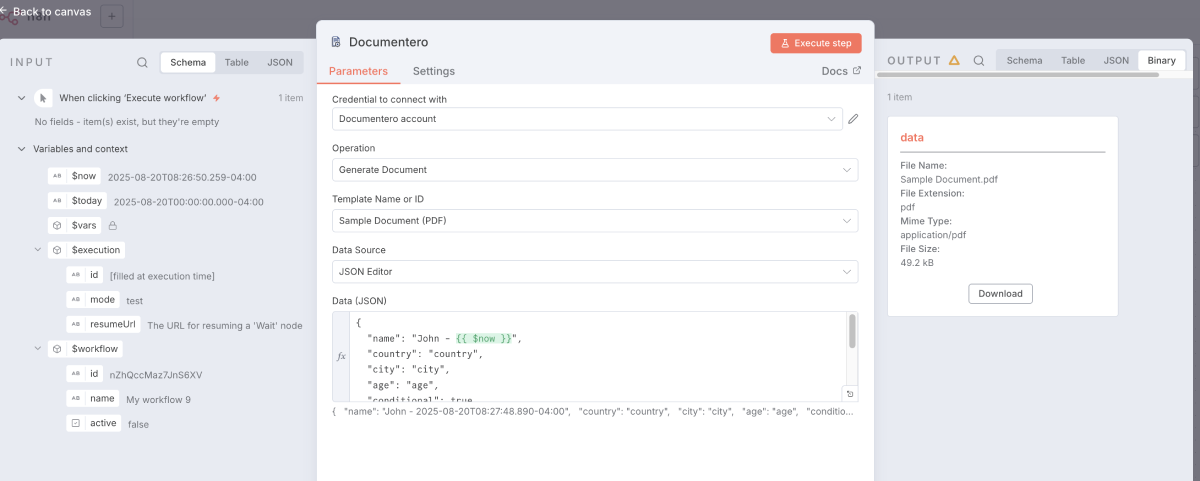](https://github.com/documentero/n8n-nodes-documentero/blob/HEAD/assets/n8nnodesample.png)
# Power Automate
### Usage
Use Power Automate Connector for Documentero to generate documents.
Connector documentation page:
### Video Tutorial
{% embed url="" %}
{% embed url="" %}
### Sample Usage
* Create or upload template(s) (.docx/.xlsx) to Documentero ([https://app.documentero.com](https://app.documentero.com/))
* \[Optional] Once the template is added, decide on the output format and output file name on the template overview page in Documentero
* Use the "Generate Document - Word Excel PDF" action if you want to pass the document to a different service (e.g., OneDrive/Google Drive/Outlook) or use "Generate and Email Document - Word Excel PDF" to generate the document and email it via the Documentero service
* Once the connector is using the correct connection, Documentero templates should populate in the dropdown list ("Document Template")
* Select the template that you want to use for document generation. After selection, all template fields should appear ready for mapping
* Provide/map values for all desired fields
* Test your flow
### Supported Operations
The connector supports these operations:
* `Generate Document - Word Excel PDF`: Populate an .xlsx or .docx template and generate a document
* `Generate and Email Document - Word Excel PDF`: Populate an .xlsx or .docx template and send the generated document as an email attachment
### Response Fields
The connector returns the following fields:
* `data.fileName`: Name of the generated file
* `data.fileContent`: Base64-encoded content of the generated file
* `data.fileExtension`: File extension of the generated document
* `data.contentType`: MIME type of the generated file
# Integrately
You can integrate Documentero with Integrately to generate Word or PDF documents in your workflows.
### Integration Page
Link:
# Pabbly Connect
You can integrate Documentero with Pabbly Connect to generate Word or PDF documents in your workflows.
### Integration Page
Link:
### Additional Info
Line items / sections with subfields are not supported in Pabbly Connect integration (due to Pabbly limitations), however there are known workarounds).
\
*For loops with subfields you need to pass JSON structure in section field e.g. \[{"Product":"iPhone","Price":"99"},{"Product":"iPad","Price":"49"}}]*
### Video Tutorial
{% embed url="" %}
# Albato
You can integrate Documentero with Albato to generate Word or PDF documents in your workflows.
### Integration Page
Link:
###
### Video Tutorial
{% embed url="" %}
# Bubble.io Plugin
You can integrate Documentero with Bubble.io to generate Word or PDF documents in your apps.
Integration page:
Youtube Tutorial:
Youtube Tutorial#2 (Data Lists > Sections):
Bubble Integration FAQ:
**Q: Sometimes values are not passed correctly, or there is an error during document generation. Why?**\
**A:** Ensure that you are passing valid JSON data. When mapping properties, use the `:formatted as JSON-safe` option in Bubble to guarantee proper formatting.
**Q: I'm passing an image URL from Bubble, but it doesn't appear in the output document. What's wrong?**\
**A:** Bubble often provides URLs without the `https://` or `http://` prefix, which makes them invalid from Documentero’s perspective. When mapping image URL properties, make sure to prepend the correct protocol (e.g., `https://`) to form a valid URL.
**Q: How do I insert an array of table data from Bubble.io as repeating sections in the document template?**\
**A:** Define a section in your document template and pass the table data as an array of objects in your JSON. Each object will be rendered as a row within the section.
# Webflow
You can integrate Documentero with Webflow to generate Word or PDF documents in your sites.
Integration page:
Youtube Tutorial:
# Flutterflow
You can integrate Documentero with Flutterflow to generate Word or PDF documents in your apps.
Blog post with Tutorial:[ ](https://blog.documentero.com/2024/01/21/flutterflow-documents/)
Youtube Tutorial:[ ](https://www.youtube.com/watch?v=NLyuWJSQSzg)